

Follow these steps to install Wizardly Add-in and Setup your account:
1- Check your inbox nad open the invitation email

2- Set up your account password
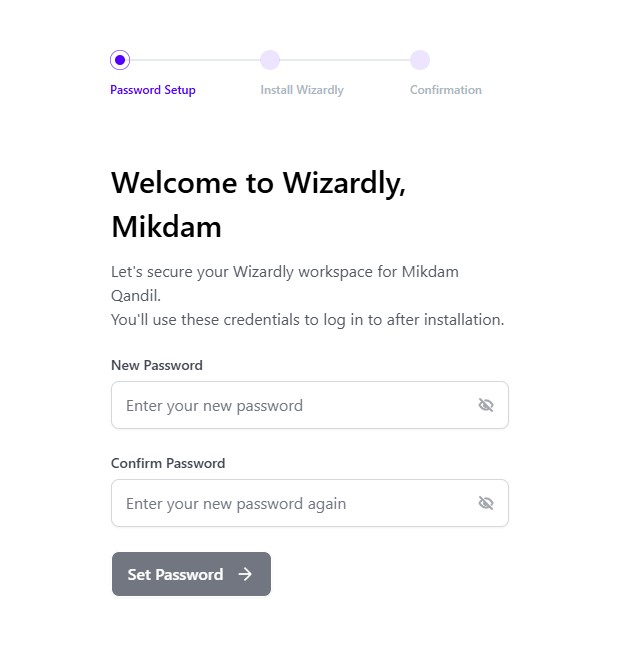
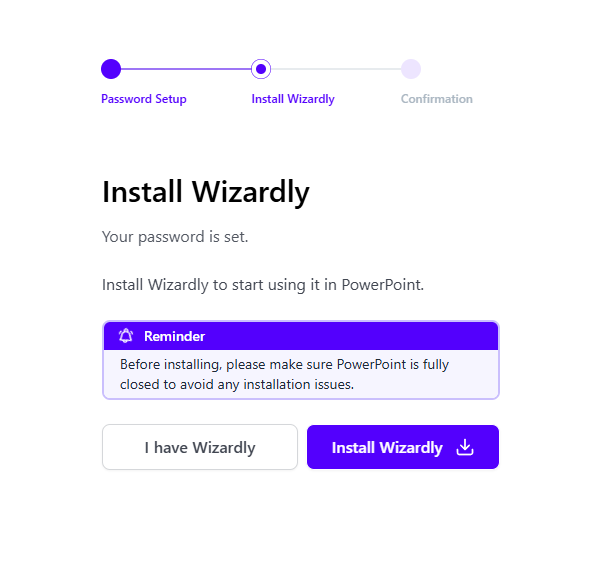
3- Install Wizardly Add-in
3- Once installation is complete, Open PowerPoint and enter your credentials
You will be asked to log into your wizardly account.

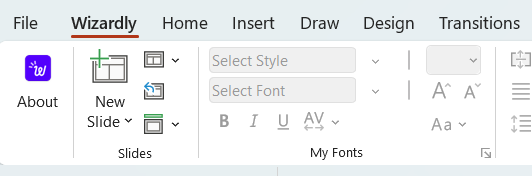
4- Once you log in, you’ll see the Wizardly tab next to the “file” tab in PowerPoint’s ribbon.
5- First-time setup:

The first-time setup may take a few minutes. This is because Wizardly is preparing your organization’s assets and brand information inside PowerPoint. You can minimize the sync window and work freely inside PowerPoint while Wizardly syncs your assets.