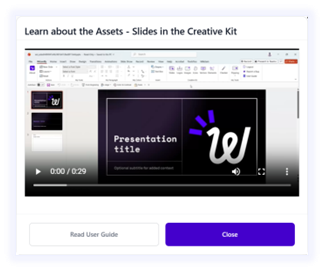

Welcome to Wizardly, the add-in designed to make your PowerPoint experience smarter, faster, and always on brand.
This User Guide will help you understand Wizardly step by step, whether you’re exploring it for the first time or using it as a quick reference in your daily work. You’ll find clear explanations for every feature, button, and process, so you can create powerful, brand-aligned presentations effortlessly.
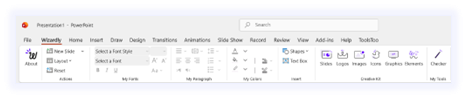
Ribbon
The Ribbon is the main toolbar located at the top part of the PowerPoint interface. It acts as your command center, providing shortcuts to all core Wizardly features directly within your familiar PowerPoint workspace.
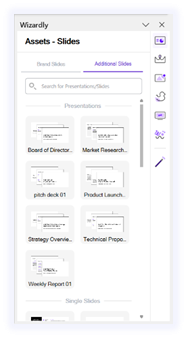
Side Pane
The Side Pane is where most Wizardly interactions take place, it is designed to be intuitive and lightweight, so you can stay focused on your presentation while Wizardly quietly supports your workflow.
Pop-ups
Wizardly uses smart pop-ups to guide you through key moments in your workflow. These appear contextually; they are designed to be non-intrusive, actionable, and helpful, ensuring a smooth and guided experience without breaking your creative flow.