

Brand Slides
Access a library of designed presentations & slides customized for your brand.
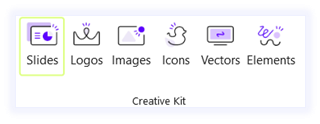
- In the creative kit tab, navigate to the Slides icon.
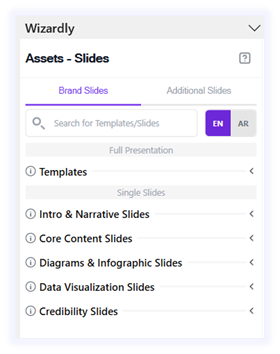
- Navigate to the brand slides tab in the side pane.
- You can browse your full presentations & a collection of your most used single slides organized by slide type for easier design flow.
- For Presentations:
- Open the templates dropdown menu.
- Hover over the desired Presentation.
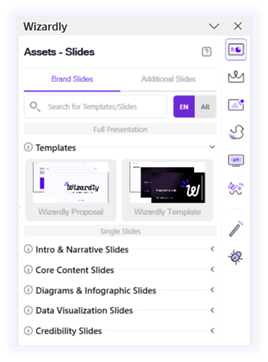
- You can preview the presentation slides in a larger size.
- Or click on Insert to open the presentation in a new file.
- For Slides:
Single slides are sorted into the following categories:
- Intro & Narrative Slides:
Used for opening slides & context-setting.
Examples: Title slide, agenda, introduction slide.
- Core Content Slides:
Used for core arguments, main ideas, supporting details.
Examples: Text-based slides, key points, comparisons.
- Diagrams & Infographic Slides:
Used for visual representations of workflows, timelines, and concepts.
Examples: Flowcharts, process diagrams, timelines.
- Data Visualization Slides:
Used for displaying numbers, trends, and performance.
Examples: Bar charts, line graphs, pie charts, data tables.
- Credibility Slides:
Used for showcasing expertise, testimonials, client logos, credentials.
Examples: Awards, endorsements, and partnerships.
To add a single slide from your brand:
- Hover over the desired Presentation.
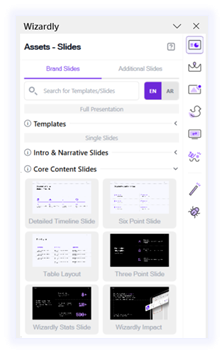
- You can preview the presentation slides in a larger size.
- Or insert the slide directly.
- Tip: Toggle the EN/AR button at the top right to view results in your desired language.
Additional Slides
Access a library of pre-designed presentations & slides offered by Wizardly. Any slide you insert will instantly adapt to your brand colors and fonts.
To add a single slide from Wizardly’s library
- In the creative kit tab, navigate to the Slides icon.
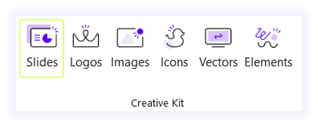
- Navigate to the Additional slides tab in the side pane.
- You can browse Presentations & Slides
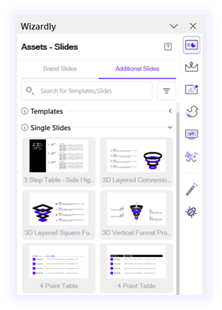
- For Templates:
- Hover over the desired Presentation
- You can preview the presentation slides in a larger size.
- Or click on Brand-Ready to open the presentation in a new PowerPoint file adapted to your brand colors and fonts.
- For slides:
- Hover over the desired slide
- You can preview the slide in a larger size.
- Or insert the slide adapted to your brand colors and fonts.
- Tip: You can browse your desired slide type using the filter at the top right of the side pane.