

- No Wizardly Tab Visible:
Ensure the add-in is enabled in PowerPoint:
- Go to File > Options > Add-Ins and check under COM Add-ins.
- Install the Wizardly add-in if necessary (from this link).
- Missing Templates or Assets:
If certain corporate templates or logos don’t appear in Wizardly:
- Close PowerPoint and re-open it.
- Or contact your brand manager. They may need to upload the assets to Wizardly’s admin console.
- Login or Sync Issues:
Check your network connection and credentials. Wizardly uses your corporate account.
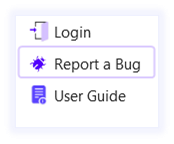
- Report a bug: You can report bugs or issues directly from the Wizardly add-in. Add a short description and mention the slide or action where the issue occurred.
For more help, consult the Wizardly support team through support@wizardly.com or contact your internal Wizardly administrator.