

Brand Icons
Access a library of your approved brand icons.
In the creative kit tab, navigate to the icon’s icon.
- Navigate to the brand icons tab in the side pane.
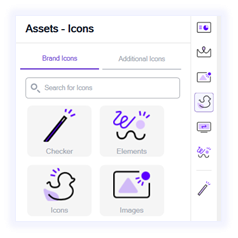
- On hover, you can choose between:
- Preview: display the asset in a larger size.
- Insert: Insert the asset directly into your slide.
Additional Icons
Access a library of additional icons offered by Wizardly (Integrated with Noun Project).
In the creative kit tab, navigate to the icon’s icon.
- Navigate to the additional icons tab in the side pane.
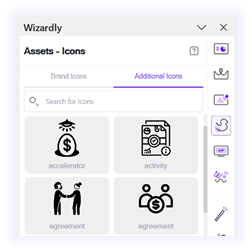
- On hover, you can choose between:
- Preview: display the asset in a larger size.
- Insert: Insert the asset directly into your slide.
- After inserting an icon, you can replace the icon by selecting the current icon, hovering over the new icon, then clicking “Replace”
- Wizardly integrates with third-party sources such as Noun Project to provide users with a wider range of assets. Please note that Wizardly is not responsible for the content provided by these third-party services. All assets obtained through this integration are governed by the respective third-party’s terms and conditions.